


As developers, we often find ourselves building smarter, more context-aware applications. Whether it’s powering a document search tool or implementing Retrieval-Augmented Generation (RAG), semantic search is a powerful capability to have in your toolbox.
I recently found myself needing a lightweight, local, in-memory vector database for a .NET / C# project. At the time, there weren’t any solid libraries available in the .NET ecosystem. So I built one. That project has grown into Build5Nines.SharpVector — a fast, flexible vector search library that works seamlessly with .NET apps and supports OpenAI and Ollama for high-quality embeddings.
In this article, I’ll walk you through what semantic search is, how SharpVector works, and how you can integrate it into your own .NET projects.
Table of Contents
What is Semantic Search?
Traditional keyword search looks for exact matches or close string similarities. Semantic search goes deeper — it tries to understand the meaning behind the words. Instead of searching for the word “car,” you might search for “vehicle” and still find relevant results, even if the word “vehicle” doesn’t appear in the text.
How it Works
Semantic search works by converting text into embeddings, which are high-dimensional numerical vectors that capture the context and meaning of the text. These embeddings are generated using machine learning models trained on large corpora of language data.
Once each piece of text (like a document, sentence, or paragraph) is represented as a vector, you can compare those vectors using similarity measures like cosine similarity. A search query is also embedded into a vector, and then compared to the existing vectors in your database to find the closest matches in terms of meaning.
This approach allows semantic search to:
- Return results that are contextually relevant
- Match synonyms and paraphrased text
- Handle fuzzy and incomplete queries more intelligently
Common Use Cases
Semantic search is incredibly useful in a wide range of scenarios:
- AI-enhanced search interfaces: Allow users to search content using natural language, and get results that actually make sense.
- Internal documentation search: Help employees or developers find relevant documentation, even if they don’t know the exact keywords.
- RAG (Retrieval-Augmented Generation): Combine search with LLMs to create chatbots or assistants that can pull relevant knowledge from documents.
- Recommendation engines: Suggest similar documents, articles, or products based on content similarity.
In all of these cases, semantic search provides a smarter alternative to simple keyword-based lookup.
Why I Built Build5Nines.SharpVector
Back in early 2024, I was building a .NET application that needed semantic search. I realized there weren’t any Nuget packages to pull in yet that provided an in-memory, embeddable vector database to use for semantic search.
After some thought, what I really wanted / needed for my project was:
- Fast and in-memory
- Native to .NET / C#
- Free from external server dependencies
So I did some research on how text vectorization and semantic search works, then decided to build my own lightweight implementation in C#. And Build5Nines.SharpVector was born. It started as a simple, in-memory, vector database that had it’s own text vector generation capabilities. Since then I’ve expanded the library to support more robust integration with OpenAI, Azure OpenAI, and Ollama for better quality embeddings generation.
Getting Started with SharpVector
Getting started with semantic search in .NET doesn’t have to be complex. SharpVector makes it straightforward to plug in vector search capabilities using a clean, .NET-friendly API. Whether you’re experimenting with text search or building a more advanced AI feature, this quick guide will help you get up and running.
First, install the core package:
dotnet add package Build5Nines.SharpVector
Here’s a quick example of basic usage with local embeddings:
using Build5Nines.SharpVector;

var db = new BasicMemoryVectorDatabase();

db.AddText("Iron Man is a Marvel movie.", "Iron Man");
db.AddText("The Lion King is a Disney animated film.", "Lion King");

the var results = db.Search("Marvel hero");

foreach (var item in results.Texts)
{
    Console.WriteLine($"Result: {item.Metadata}");
}
That’s all it takes to run local semantic search right inside your app.
This local-only setup is perfect for lightweight use cases, prototyping, or apps where you want to avoid external dependencies. From here, you can build up to more powerful scenarios by adding support for OpenAI or Ollama embeddings as needed.
Using OpenAI Embeddings
If you’re looking to level up your semantic search with more advanced and accurate embeddings, OpenAI offers one of the best options available today. Whether you’re using their public API or the Azure-hosted version, integrating OpenAI’s embeddings into SharpVector is simple and powerful.
For better quality embeddings, you can hook into OpenAI’s hosted APIs.
Install the OpenAI extension
To get started, you’ll first need to install the NuGet package that adds OpenAI embedding support to SharpVector:
dotnet add package Build5Nines.SharpVector.OpenAI
Example with OpenAI API
Here’s an example of configuring the use of OpenAI for embeddings generation:
using OpenAI;
using Build5Nines.SharpVector.OpenAI;

var openAIClient = new OpenAIClient("your-api-key");
var embeddingClient = openAIClient.GetEmbeddingClient("text-embedding-ada-002");
var db = new BasicOpenAIMemoryVectorDatabase(embeddingClient);
Example with Azure OpenAI
Here’s an example of configuring the use of an embedding model running in Azure OpenAI Service for embeddings generation:
using Azure;
using Azure.AI.OpenAI;
using Build5Nines.SharpVector.OpenAI;

var azureClient = new AzureOpenAIClient(
    new Uri("https://your-resource-name.openai.azure.com/"),
    new AzureKeyCredential("your-api-key")
);
var embeddingClient = azureClient.GetEmbeddingClient("text-embedding-ada-002");
var db = new BasicOpenAIMemoryVectorDatabase(embeddingClient);
Once configured, use .AddText(...) and .SearchAsync(...) just like the local version.
This integration allows you to harness state-of-the-art language models to generate context-rich embeddings, enabling incredibly accurate semantic searches. It’s a great option for production-grade applications or when your local compute isn’t enough for high-quality vector generation.
Using Ollama for Local Embeddings
Ollama is an awesome tool for running open-source language models locally. If you want to keep everything offline and still get great embedding quality, Ollama is a solid choice.
Install the Ollama Extension
To get started, you’ll first need to install the NuGet package that adds Ollama embedding support to SharpVector:
dotnet add package Build5Nines.SharpVector.Ollama
Example with Ollama Embeddings
Make sure Ollama is running locally with a model, such as nomic-embed-text (more at ollama.com).
Here’s an example of configuring the use of an embedding model running in Azure OpenAI Service for embeddings generation:
using Build5Nines.SharpVector.Ollama;

var db = new BasicOllamaMemoryVectorDatabase("nomic-embed-text");
db.AddText(documentText, metadataText);
var results = await db.SearchAsync("your search query");
It works just like the other versions, but with embeddings generated by your local model.
Enhancing Search with Text Chunking
When working with large documents or datasets, it’s crucial to manage the size and context of the text being processed for embeddings. This is where Text Chunking comes into play.
What is Text Chunking?
Text Chunking is the process of breaking down large pieces of text into smaller, manageable segments or “chunks.” Each chunk is then converted into a vector embedding, allowing for more precise and contextually relevant semantic searches.
When to Use Text Chunking?
Here are some use cases of when to use text chunking to enhance the search experience with a semantic search solution:
- Improved Search Accuracy: Smaller chunks enable the system to retrieve more specific and relevant information in response to queries.
- Handling Large Documents: Chunking allows large texts to be processed without exceeding token limits of embedding models.
- Enhanced Contextual Understanding: By maintaining logical boundaries (like paragraphs or sentences), chunking preserves the semantic integrity of the text.
Text Chunking Example with SharpVector
Build5Nines.SharpVector provides a TextDataLoader class that facilitates text chunking. Here’s how you can use it:
using Build5Nines.SharpVector;
using Build5Nines.SharpVector.Data;

var loader = new TextDataLoader<int, string>(vectorDatabase);

loader.AddDocument(documentText, new TextChunkingOptions<string>
{
    Method = TextChunkingMethod.Paragraph,
    RetrieveMetadata = (chunk) => "{ \"source\": \"DocumentName\" }"
});
In this example, the document is split into paragraphs, each converted into a vector embedding. The RetrieveMetadata function associates metadata with each chunk, which can be useful for tracking the source or context during retrieval.
SharpVector supports various chunking methods:
- Paragraph: Splits text by paragraphs.
- Sentence: Splits text by sentences.
- FixedLength: Splits text into chunks of a specified character length.
- OverlappingWindow: Splits text into chunks of a specified word count that overlaps by a specified number of words.
Choosing the appropriate chunking strategy depends on your specific use case and the nature of your data.
Final Thoughts
If you’re building .NET applications and need semantic search, give Build5Nines.SharpVector a shot. It gives you a clean and efficient way to work with vector search in .NET, whether you’re running embedded or integrating with powerful APIs like OpenAI or Ollama.
The library is open source, actively maintained, and easy to integrate into any C# project.
👉 Go check out the Build5Nines.SharpVector documentation and give it a spin in your next project!
Happy coding! 🚀
Original Article Source: Semantic Search in .NET / C# with Build5Nines.SharpVector written by Chris Pietschmann (If you're reading this somewhere other than Build5Nines.com, it was republished without permission.)
 Microsoft Azure Regions: Interactive Map of Global Datacenters
 Create Azure Architecture Diagrams with Microsoft Visio
 Unlock GitHub Copilot’s Full Potential: Why Every Repo Needs an AGENTS.md File
 Azure Network Security Best Practices to Protect Your Cloud Infrastructure
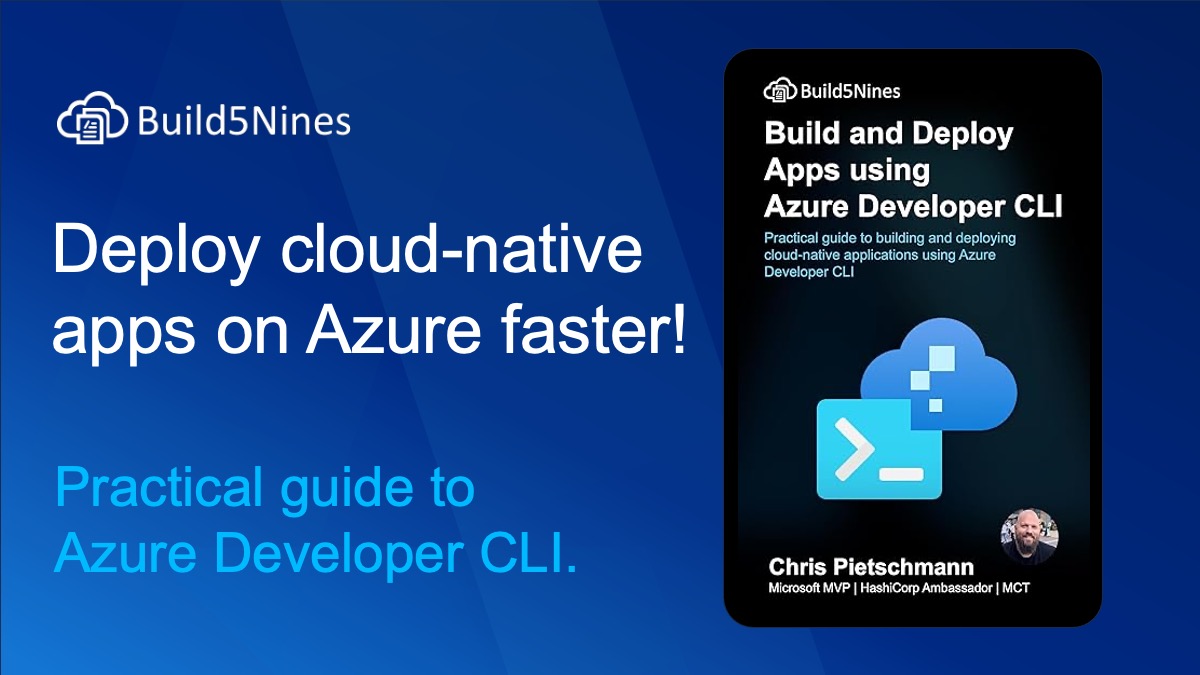 New Book: Build and Deploy Apps using Azure Developer CLI by Chris Pietschmann


Wow! Amazing work Chris!
Thanks!